Below is a chart explaining the meanings of the LED indicators on the Wired Doorbell 2K+, the Video Doorbell (2nd Gen) and Battery Doorbell 2K+, and the Video Doorbell (1st Gen).
Wired Doorbell 2K+
| Light Pattern | Description |
|---|---|
 |
LED: Blinking green button LED
Activity: Doorbell is powering up.
|
 |
LED: Solid green button LED + Blinking blue status LED
Activity: Doorbell is in pairing mode and ready to be discovered.
|
 |
LED: Solid red button LED
Activity: Doorbell setup unsuccessful. Please try again. If the issue persists, check that your chime wiring is properly connected.
|
 |
LED: Solid blue status LED
Activity: Doorbell is recording motion or accessing a live view. You can disable this LED under Device Settings > General Settings > Button LED > Off when Recording. The LED can also be set to Always On. Optionally, the white LED around the Doorbell button can also be enabled for the same functionality, under Status LED > When Recording (off by default).
Learn more about Doorbell settings. |
 |
LED: Blinking white button LED
Activity: Doorbell has been pressed.
|
 |
LED: None
Activity: Doorbell has successfully completed setup, established an online connection, and connected to Wi-Fi.
|
Video Doorbell (2nd Gen) and Battery Doorbell 2K+
Note: Images show the Video Doorbell (2nd Gen), but LED placement and patterns are the same on the Battery Doorbell 2K+.
| Light Pattern | Description |
|---|---|
.gif) |
LED: Blinking red button LED Activity: Doorbell is in pairing mode and ready to be set up. If the red LED does not flash as expected, remove the batteries for five seconds and then reinsert them. |
.png) |
LED: Solid red button LED
Activity: Doorbell setup unsuccessful. Please try again. If the issues persist, consider replacing the batteries.
|
.png) |
LED: Solid blue status LED
Activity: Doorbell is recording motion or accessing a live view. You can disable this LED under Device Settings > General Settings > Button LED > Off when Recording. For doorbells connected to chime wiring, it can be set to Always On. Optionally, the white LED around the Doorbell button can also be enabled for the same functionality, under Status LED > When Recording (off by default).
Learn more about Doorbell settings. Note: The Always On option is only available for doorbells connected to chime wiring. Battery-powered doorbells, such as the Battery Doorbell 2K+, do not support this setting. |
 |
LED: Blinking white button LED
Activity: Doorbell has been pressed.
|
.png) |
LED: None
Activity: Doorbell has successfully completed setup, established an online connection, and connected to Wi-Fi.
|
Video Doorbell
| Light Pattern | Description |
|---|---|
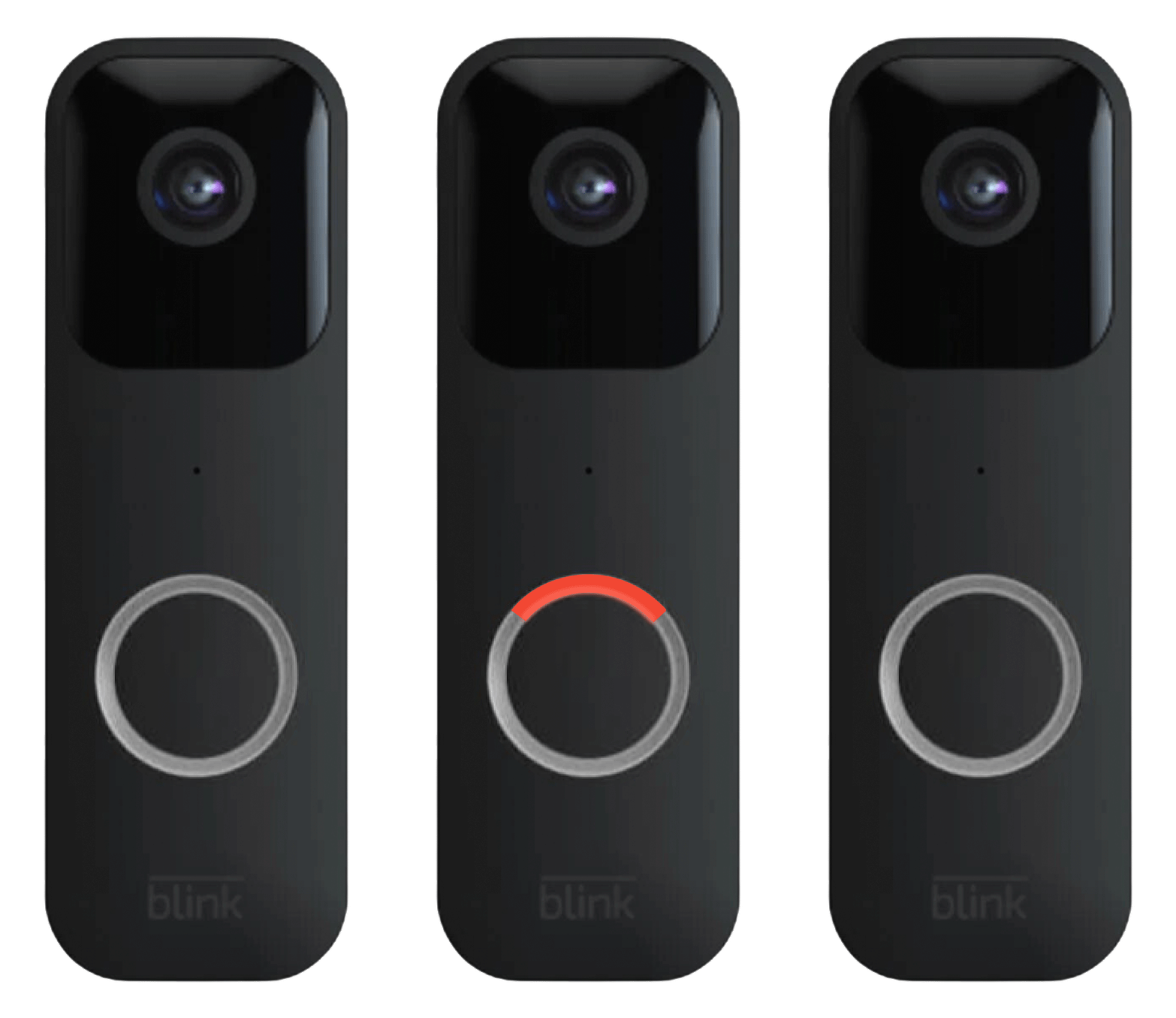 |
LED: Blinking red button LED
Activity: Doorbell is in pairing mode and ready to be set up. If the red LED does not flash as expected, remove the batteries for five seconds and then reinsert them.
|
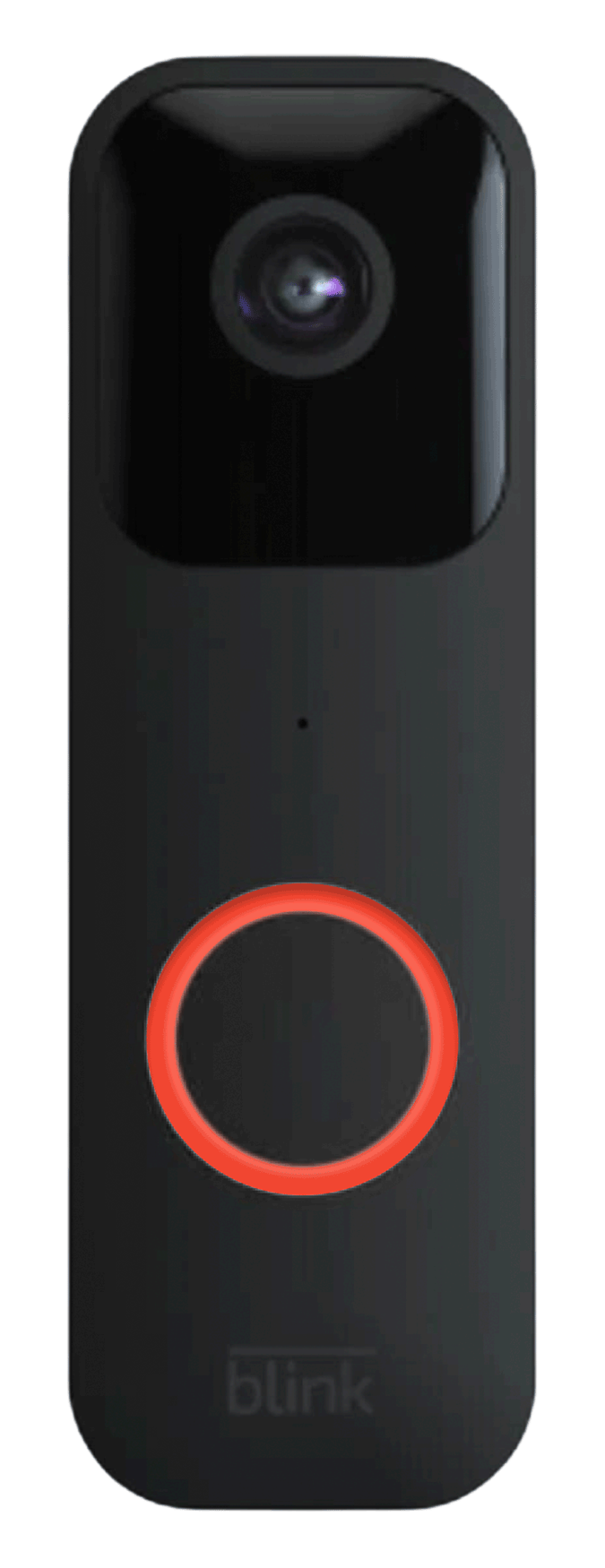 |
LED: Solid red button LED
Activity: Doorbell setup unsuccessful. Please try again. If the issues persist, consider replacing the batteries.
|
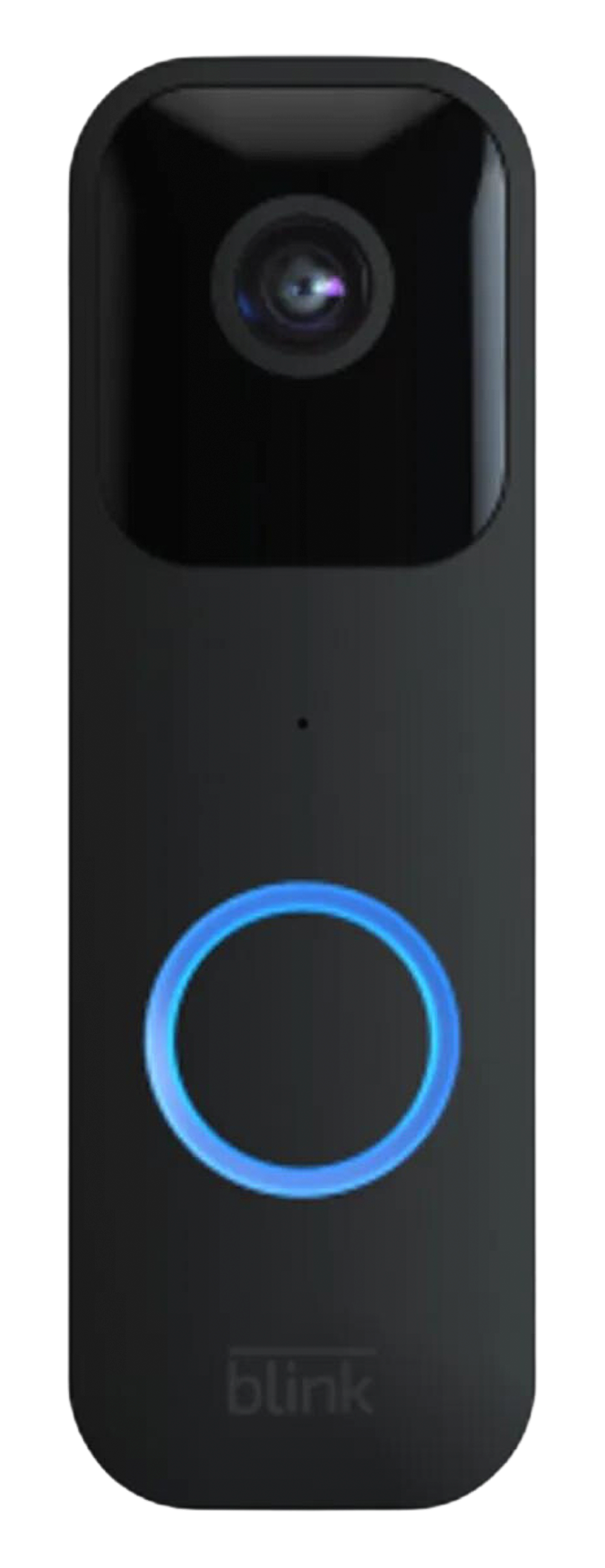 |
LED: Solid blue button LED
Activity: Doorbell is either recording motion or accessing a live view. You can disable this LED by going to Device Settings > General Settings > Button LED > Off when Recording. For doorbells connected to chime wiring, the LED can be set to Always On.
Learn more about Doorbell settings.
|
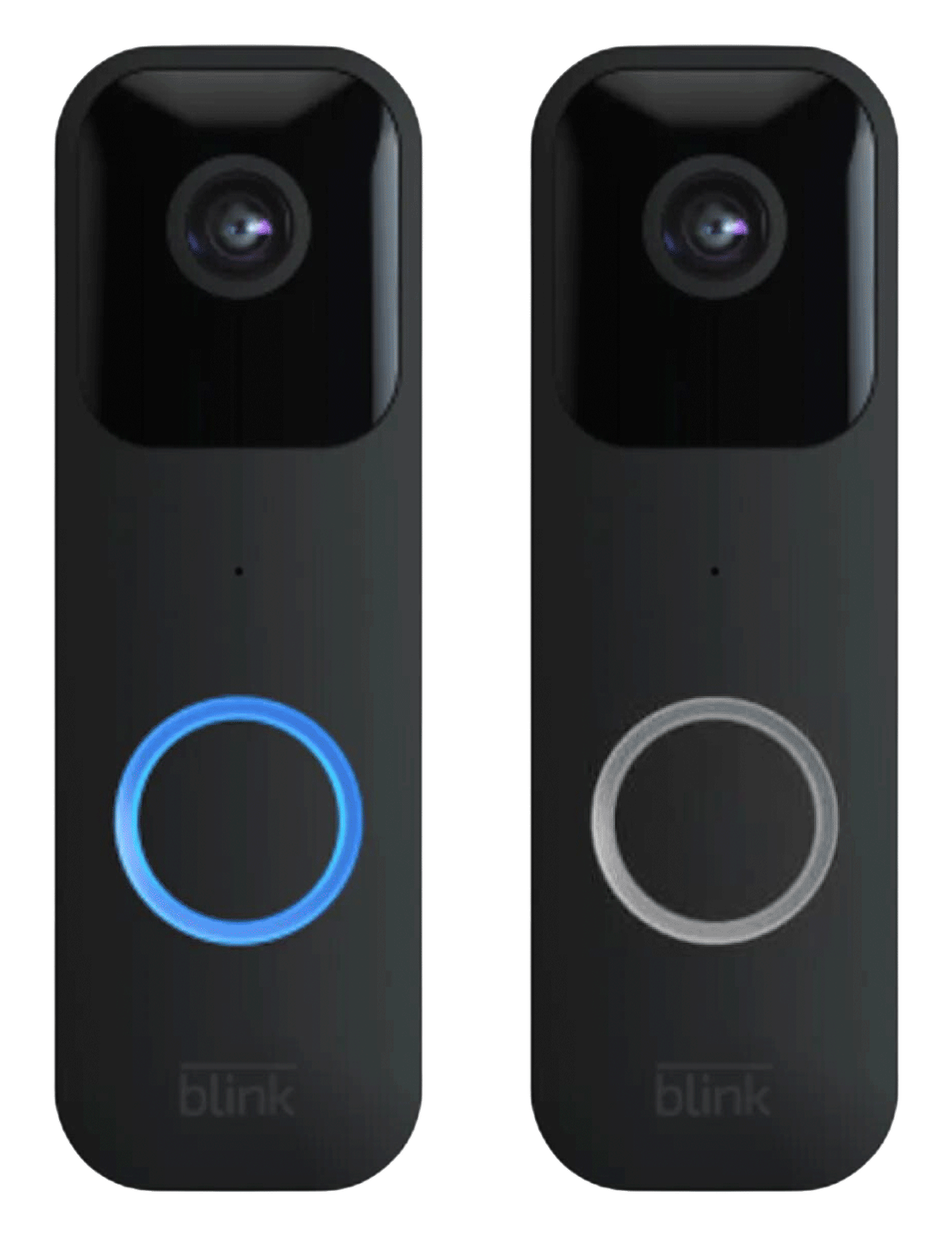 |
LED: Blinking blue button LED
Activity: Doorbell has been pressed.
|
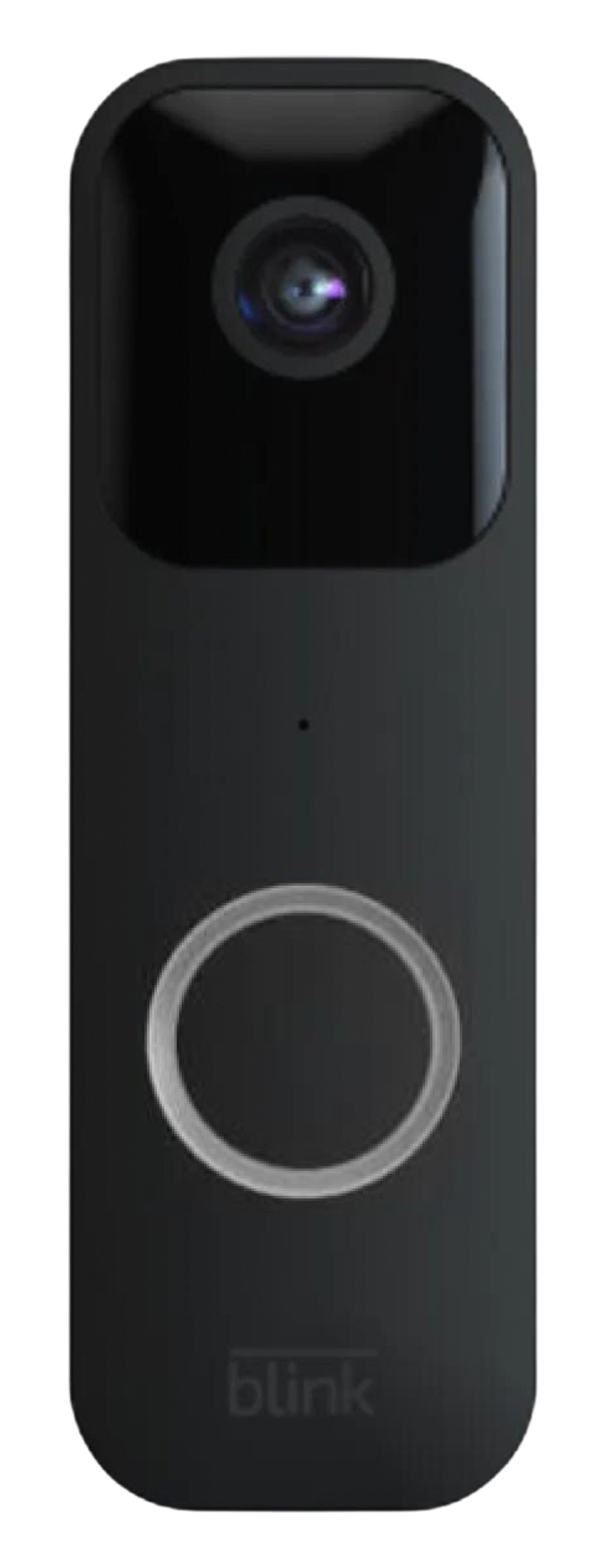 |
LED: None
Activity: Doorbell has successfully completed setup, established an online connection, and connected to Wi-Fi.
|