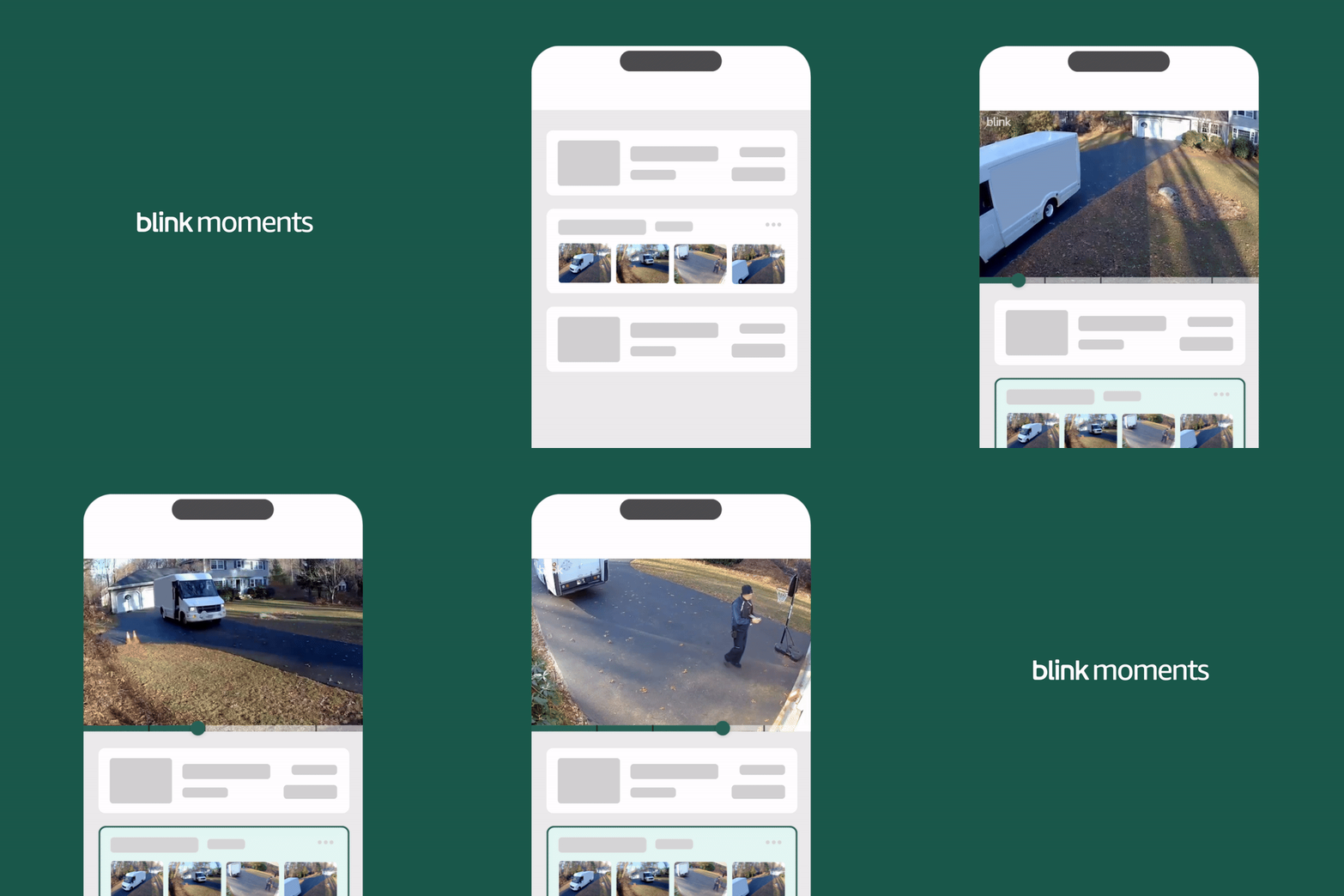
Blink Moments is a subscription feature that automatically combines motion events recorded within a short timeframe across all cameras into a single clip, making it easy to view an entire moment in time.
Whether it’s your kids playing in the yard, guests arriving for a family gathering, or pets exploring the backyard, Moments seamlessly combines footage from one or multiple cameras into a complete video. This saves you from manually sorting through individual clips, allowing you to quickly view and share a single Moment.
Moments are generated automatically when:
- You have an active Blink Subscription Plan or trial.
- Two or more motion clips or saved live views are recorded:
- From cameras on the same system.
- Within 45 seconds of the start time of the last recorded clip.
Turning Moments On/Off
Moments is enabled by default and can be toggled on or off from the Clip List.
To turn Moments on or off:
- Tap Clips in the bottom navigation bar.
- From the Clip List, tap the Moments icon
.png) in the bottom right corner.
in the bottom right corner. - Tap either Turn Off Moments or Turn On Moments.
| Icon | Status | Description |
|---|---|---|
.png) |
On | Clips that meet the criteria will automatically be grouped into Moments. |
.png) |
Off | Previously generated Moments will appear as individual clips in the Clip List. If Moments is turned back on, clips that met the criteria during the off period will be grouped into Moments again. |
Viewing a Moment
When enabled, the Clip List displays Moments, which can be identified by multiple thumbnail images and a time frame indicating the start time of the first clip and the start time of the last clip within the Moment.
To view a Moment:
- Tap Clips
 in the bottom navigation bar.
 - From the Clip List, tap the Moment you wish to view.
To view a Moment at 2x speed:
- iOS: Press and hold anywhere on the Moment.
- Android: Press and hold on the right side of the Moment.
While viewing at 2x speed, a  badge will appear at the top center of the Moment. Release to return to normal speed.
To view information about the clips within a Moment, including event types and camera names, press and hold the Moment to open Moment Details.
Navigating within a Moment
When viewing a Moment, the bar at the bottom of the video player allows you to navigate through clips within the current Moment. Each notch marks the start of a new clip, and you can move the slider along the bar to go directly to any clip within the Moment.
To navigate between clips within the Moment, double-tap the right side of the current clip to go to the next clip, or double-tap the left side to go back to the previous clip. Double-tapping the first clip in a Moment will restart the clip, while double-tapping the last clip will skip to the end of the clip.
To navigate to the next or previous Moment or clip in the Clip List, tap the next or previous arrows once.
Saving and sharing a Moment
Moments can be saved to your mobile device or shared from the Blink app to your favorite social media, email, and messaging apps.
To save a Moment:
- Tap Clips in the bottom navigation bar.
- From the Clip List, tap the Moment you wish to share. The selected Moment will automatically start playing.
- Tap the video player to display the controls, then:
-
iOS: Tap Share
 in the upper left corner of the video, then tap Save
 .png) . The clip will be saved to your Camera Roll.
. The clip will be saved to your Camera Roll. -
Android: Tap Save in the upper left corner of the video. The clip will be saved to your Videos folder.
-
iOS: Tap Share
To share a Moment:
- Tap Clips in the bottom navigation bar.
- From the Clip List, tap the Moment you wish to share. The selected Moment will automatically start playing.
- Tap the video player to display the controls. Then, tap the Share icon in the upper left corner.
Deleting a Moment
To delete a Moment:
- Tap Clips in the bottom navigation bar.
- From the Clip List, tap Edit in the upper right corner.
- Select the Moment you wish to delete.
- Note: The delete button shows the number of clips to be deleted (example, 'Delete (5)').
- Tap Delete.
- If your mobile device is set to large text, the Delete option will be listed under the (…) menu in the bottom right corner.
- To confirm deletion, tap Delete Selected Clips.
Deleting a clip within a Moment
Deleting a clip within a Moment can change a Moment’s structure if the time between the start of one clip and the start of the next is more than 45 seconds. To keep the structure intact, at least two clips must start within 45 seconds of each other.
To delete a clip from within a Moment:
- Tap Clips in the bottom navigation bar.
- Select the Moment that contains the clip you want to delete.
- From the Moment Details screen, select Edit in the upper right corner.
- Select the clip you want to delete, then tap Delete in the bottom navigation bar. If the clip you're deleting will split the current Moment, a confirmation message will appear. Tap Delete to confirm.
- If your mobile device is set to large text, the Delete option will be listed under the (…) menu in the bottom right corner.